 MovieBox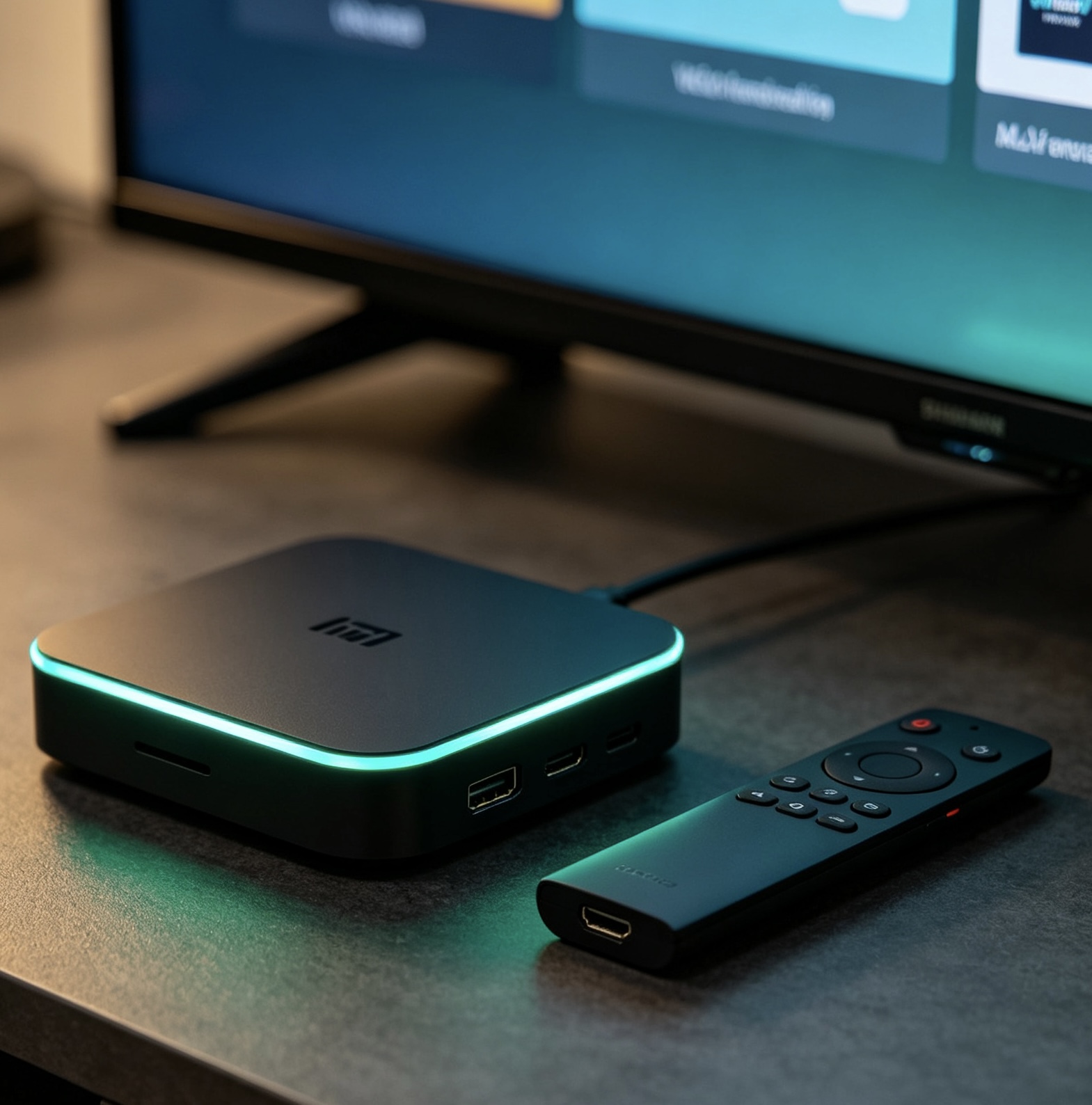
The application is designed to work seamlessly across multiple devices, including Android smartphones, tablets, Android TV boxes and even iOS devices through a dedicated installation process. Installing MovieBox on a TV box is one of the most popular ways to turn a regular living room into a home cinema — no cable box or streaming stick subscription required.
Because MovieBox is not on the Google Play Store, you sideload the APK. There are three reliable methods, and all of them take about five minutes.
Which TVs and Boxes Support MovieBox?
MovieBox is an Android app, so it runs on any device that can install Android APK files. In practice that means two device families:
- Android TV / Google TV devices — built into televisions from Sony BRAVIA, Hisense, Philips, Xiaomi, Sharp and TCL, and into streamers such as the NVIDIA Shield TV and Chromecast with Google TV.
- Amazon Fire TV devices — Fire TV Sticks and the Fire TV Cube run Fire OS, Amazon’s Android-based system, so the same sideloading steps apply.
If your television runs Samsung Tizen, LG webOS or Roku, you cannot install an Android APK on it directly. The practical workaround is an external Android TV box or a Fire TV Stick: plug it into an HDMI port, install MovieBox on that device, and use its remote to watch on your existing screen.
What You Need Before You Start
A little preparation prevents most installation failures. Check these four things first:
- A stable internet connection — if the connection drops while the APK is downloading, the file can arrive incomplete and the install will fail. Use a wired connection, or sit close to the router if your Wi-Fi is weak.
- Free storage on the box — open the device’s storage settings and confirm there is enough room for the download plus the installed app.
- The TV version of the APK — download the Android TV-oriented build from the official MovieBox website. A phone APK technically installs, but its touch layout looks small and awkward when you navigate with a remote.
- Installation permission — every method below needs the “install unknown apps” permission switched on for the tool doing the installing.
Enabling Unknown Sources
Whichever method you choose, Android will ask you to allow installs from unknown sources the first time. The setting lives in a different menu on each platform:
- Fire TV: go to Settings > My Fire TV > Developer options > Install unknown apps and switch on the app you install with (usually Downloader). If Developer options is hidden, open Settings > My Fire TV > About and press the device name seven times to reveal it.
- Android TV / Google TV: open Settings > Apps > Special app access > Install unknown apps and enable it for your browser or file manager.
- Other Android TV boxes: look under Settings > Security & restrictions or Settings > Device preferences > Security — the exact wording varies by brand.
Only grant this permission to apps you trust, such as the official download tools. If you prefer, switch the permission off again after MovieBox is installed.
Method 1 — Install with the Downloader App (Fire TV)
The Downloader app is the fastest method on Fire TV and many Android TV boxes.
- Install Downloader from the Amazon Appstore (or your box’s store).
- Open Downloader and enter the download URL for the MovieBox APK from the official website.
- When the download finishes, Downloader will ask if you want to install the file — choose Install.
- If your box blocks unknown sources, follow the on-screen prompt to allow Downloader, then install again.
Tip: if the download page shows a short Downloader code, type that code in Downloader’s URL box instead of the full web address — it is much faster with a remote. Codes occasionally change, so always use the one shown on the page you are downloading from.
Method 2 — Download Through the TV Browser
If your TV box has a built-in browser, you can skip Downloader entirely.
- Open the browser and go to the official MovieBox download page.
- Download the APK file to the device storage.
- Open your file manager, find the APK and select it to install.
A word of caution: APK download sites are full of fake “Download” buttons and redirect ads. Stick to the official MovieBox page, and ignore any page that tells you to install a “player” or “codec” first. If your box has no built-in browser, install a TV-friendly browser such as TV Bro from the app store.
Method 3 — Transfer the APK from Your Phone
Already have the APK on your Android phone? You don’t need to download it twice.
- Send the APK file to your TV box over Wi-Fi using a transfer app.
- On the TV box, open the file once it arrives and confirm the install.
Both devices must be on the same Wi-Fi network for the transfer to work. If the box does not open the APK automatically after it arrives, launch your file manager, open the Downloads folder (or the folder your transfer app saved to), and select the file to start the install.
Which Install Method Should You Use?
All three methods end with the same installed app — the only difference is how the APK reaches the box. Use this quick guide:
- Fire TV Stick or Fire TV Cube? Use Method 1 with Downloader. It is the fastest and most reliable route on Amazon’s devices.
- Android TV or Google TV? Method 2 works with no extra apps if the box has a browser; otherwise use Method 1 (when Downloader is available) or Method 3.
- Hate typing with the remote? Use Method 3 and transfer the file from your phone instead.
- APK already on your phone? Skip the TV download entirely with Method 3.
If your box blocks every sideloading method, an external Fire TV Stick or Android TV box usually gets you past the restriction using the same steps above.
What to Do After Installing MovieBox
Installation is only half the job. Take two minutes to set the app up properly:
- Find MovieBox in your apps. Sideloaded apps often do not appear on the home screen. Open the full apps list, or on Fire TV check Your Apps & Channels.
- Play a test title. Start a movie or show to confirm the stream loads, the sound reaches your speakers, and the remote’s OK, back and menu buttons behave normally.
- Sign in if you use MovieBox Pro. If you have a Pro plan, sign in from the app so your watchlist, history and saved quality settings follow you on the TV.
- Update from the official website. Because MovieBox is sideloaded, it will not update through a store. When a new version is released, download it again with your preferred method and install over the current one — your settings and downloads are kept.
Common Problems and How to Fix Them
- “App not installed” error — usually an incomplete download or the wrong APK version. Delete the file, download the TV APK again and retry.
- The download stops halfway — the Wi-Fi signal is probably too weak. Restart the download closer to the router, or connect the box with an ethernet cable.
- The Install button does nothing — the installer app still lacks the unknown-sources permission. Enable it in Settings and tap Install again.
- MovieBox is missing from the home screen — many launchers hide sideloaded apps. Open the full apps list and add it to your favorites if the launcher supports that.
- The interface looks tiny or hard to control — a phone APK was probably installed. Uninstall it and install the TV-oriented version from the official page.
Tips for the Best TV Experience
- Use an ethernet cable or a strong 5 GHz Wi-Fi connection for buffer-free HD and 4K playback.
- Pair a wireless keyboard or use the MovieBox mobile app as a remote for faster search.
- Upgrade to MovieBox Pro if you want no ads and high-quality playback on your TV box.
- Keep the app updated from the official website so new features and catalog links keep working.
- If a title keeps buffering or the app freezes, restart the box first — that clears most temporary glitches before you try anything more complicated.
Frequently Asked Questions
Is Fire TV the same as Android TV? Not exactly. Fire TV runs Fire OS, which is based on Android, so both platforms can sideload the MovieBox APK — the menus for enabling unknown sources are just in different places.
Do my phone and TV need the same Wi-Fi network? Yes, for Method 3 both devices must be on the same network so the transfer app can find the TV box.
Can I install MovieBox on a Samsung or LG smart TV? Not directly — Tizen and webOS cannot run Android APKs. Use an external Android TV box or a Fire TV Stick instead.
Do I need to root my TV box? No. Allowing unknown sources is enough; rooting is unnecessary and can make the device unstable.
Is sideloading the MovieBox APK safe? It is safe when you download only from the official MovieBox website. Avoid random mirror sites, and note that title availability depends on licensing in your region — see our disclaimer for details.
Need more detail for your specific box model?
Read the Full Android TV Guide