 MovieBox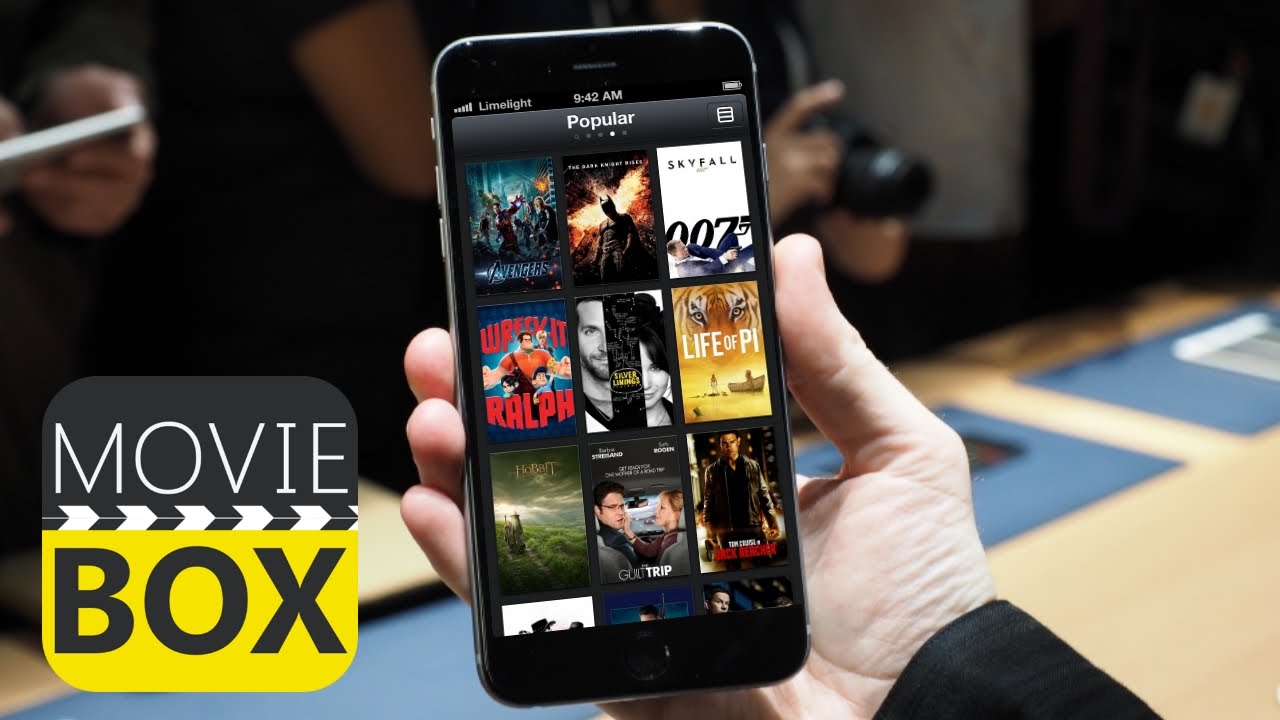
MovieBox is built for Android, but plenty of viewers prefer a desktop setup — a bigger screen, a mouse and keyboard, and speakers that don’t need charging. The good news is that you can run the MovieBox APK on both Windows and macOS with an Android emulator. See the full MovieBox for PC guide for detailed steps.
Why Run MovieBox on a PC?
- Bigger display — movies, shows and live sports look better on a monitor or laptop screen.
- Easier browsing — type with a real keyboard instead of a TV remote.
- Full-screen immersion — run the app in full-screen mode and turn your desk setup into a home theatre.
- Offline downloads — save movies and episodes straight to your hard drive for trips or weak Wi-Fi.
- One machine, all content — keep downloads and watchlists on the computer where you already spend your time.
What You Need Before You Start
MovieBox is an Android app, so your computer needs to act like an Android device for the APK to run. The easiest way to do that is with an Android emulator. Here is what to have ready before you begin:
- A Windows PC (Windows 7–11) or a Mac with at least 4 GB of RAM — 8 GB is recommended for smooth HD playback.
- About 5 GB of free storage for the emulator, the app, and your downloads.
- An Android emulator — on Windows, BlueStacks 5, LDPlayer 9, GameLoop, or MEmu Play all work well. Mac users should pick an emulator that supports macOS, such as MuMu Player or Android Studio’s built-in emulator.
- A Google account to sign in to the emulator when prompted (optional, but it makes app setup smoother).
- The latest MovieBox APK downloaded from the official MovieBox website — avoid random download mirrors.
How to Install MovieBox on PC, Step by Step
Once everything above is ready, the full setup takes about 5–10 minutes. Follow these steps in order and you’ll be streaming from your desktop in no time.
Step 1 — Install an Android Emulator
Download the installer for the emulator you chose from its official website, run it, and complete the setup wizard. On Windows, hardware virtualization is usually enabled by default, but if the emulator warns that it is disabled, restart your PC, enter the BIOS, and turn on Intel VT-x or AMD-V. This one setting makes the biggest difference to performance.
Step 2 — Open the Emulator and Sign In
Launch the emulator and finish its first-run setup. When asked, sign in with your Google account so the emulator can install APKs and keep settings in sync. Before installing anything, open the emulator’s settings and increase its RAM allocation if you can — 4 GB or more gives noticeably smoother playback.
Step 3 — Download the MovieBox APK
In your PC browser, visit the official MovieBox website and download the latest APK. Keep the file somewhere easy to find, such as your Downloads folder. Only use the official site — third-party mirrors can package outdated builds or unwanted extras.
Step 4 — Install the APK in the Emulator
Drag the downloaded APK file into the emulator window, or click the emulator’s “Install APK” button and select the file. If Android asks you to allow installs from unknown sources, open Settings > Security, allow it for the browser or file manager you are using, and try again. The install itself only takes a few seconds.
Step 5 — Open MovieBox and Start Watching
Once installed, MovieBox appears in the emulator’s app drawer. Click its icon, accept any permission prompts, and search for a title to confirm playback works. Switch the emulator to full-screen mode and you’ll get a near TV-like experience on your monitor.
Step 6 — Optional: Sign In With Your MovieBox Pro Plan
If you use MovieBox Pro, sign in from the account or upgrade section to unlock no-ads streaming, faster downloads, and web logins. A single plan covers your phone, TV, and PC, so your watchlist and progress stay in sync everywhere. Check the MovieBox Pro page for current plans.
Tips for a Smooth Install
- Download only from the official website. Mirrors may bundle unwanted software or older builds.
- If Android blocks the install, open Settings > Security inside the emulator and allow “Install unknown apps” for the browser or file manager, then retry.
- Keep the emulator and app updated. New versions fix playback bugs and refresh the content library.
- First time opening the app? Give it a moment to load the library — the first launch is always slower than later ones.
Method 2 — No Emulator: Cast from Your Phone or TV Box
Do you already have MovieBox on your phone or Android TV box and just want it on the big screen? You can skip the emulator entirely: cast or mirror your screen to the PC or directly to a TV. Screen-mirroring tools and Chromecast-enabled setups work well for casual viewing, and connecting the PC to a TV with an HDMI cable is the simplest wired option.
Emulator Performance Tips
- Enable hardware acceleration and, if needed, hardware virtualization (Intel VT-x / AMD-V) in the BIOS for smoother playback.
- Allocate at least 4 GB of RAM to the emulator if your computer can spare it.
- Close heavy background apps while streaming HD or 4K content.
- Use a wired Ethernet connection instead of Wi-Fi for more stable streaming.
- Update your graphics drivers regularly and clear the emulator’s cache every few weeks to keep it running smoothly.
Quick Troubleshooting
- App crashes on launch — increase the emulator’s RAM allocation (try 4 GB or more) and close other programs.
- Videos keep buffering — lower the video quality inside the player or check your internet connection; a wired connection helps.
- The APK will not install — allow “Install unknown apps” in the emulator’s security settings, or re-download the APK from the official site if the file is corrupt.
- The emulator feels slow — enable virtualization in the BIOS and assign more CPU cores and RAM in the emulator settings.
- Downloads fail — check free storage space, clear the app cache, and restart the emulator.
What About Web Logins?
MovieBox Pro plans include web logins, which give you a browser-based way to access content on a computer without an emulator. Check the MovieBox Pro page for the latest plan details and whether web access fits your setup.
Prefer step-by-step screenshots?
See the MovieBox for PC Guide