 MovieBox
 What Is MovieBox TV APK?
MovieBox TV APK is the TV-oriented Android application package used to install MovieBox on compatible television devices.
Unlike a regular mobile APK, a TV version is intended for a larger display and a remote-control environment. This makes it more practical for users who want to browse and watch entertainment directly from their television instead of mirroring a phone screen.
The current MovieBox TV installation page provides a dedicated TV APK download and explains several installation options for Android TV, Google TV, Fire TV, TV Boxes, and streaming sticks. It also recommends checking the device’s compatibility, available storage, network connection, and installation permissions before beginning.
Why Use MovieBox on a TV?
MovieBox turns your living room TV into a full-blown cinema. You get thousands of movies, series, and live sports, all streaming for free, no cable needed.
A television provides a completely different viewing experience from a smartphone.
A large display makes movie posters, descriptions, subtitles, and video details easier to see. Remote control navigation also means you do not need to hold a phone throughout an entire movie.
There are several other reasons users may prefer a TV installation:
- Larger screen for movies and TV shows
- Easier viewing from a sofa
- Better compatibility with external speakers and sound systems
- Convenient remote-control navigation
- More comfortable experience for family viewing
- Ability to use an existing Android TV or streaming device
- No need to keep a phone connected during playback
If your television already runs Android TV or Google TV, installing a compatible TV APK can be particularly convenient.
Compatible Devices and Platforms
Before downloading MovieBox TV APK, identify the operating system of your television.
According to the current installation guide, the TV APK is intended for compatible Android TV and Google TV devices, including models from brands such as Sony BRAVIA, Hisense, Philips, Xiaomi, Sharp, and TCL.
The guide also describes support for devices based on Amazon Fire OS, including Fire TV products. A useful distinction is:
Android TV / Google TV
These platforms can generally install Android APK files when the device permits installation from external sources.
Amazon Fire TV
Fire TV devices run Fire OS and can use APK installation methods such as Downloader when supported.
Samsung Tizen
Samsung’s Tizen operating system is not the same as Android TV, so an Android APK is not normally installed directly.
LG webOS
LG’s webOS platform also does not natively install standard Android APK files.
Roku and Apple TV
Roku and Apple TV use their own application ecosystems and do not provide normal Android APK installation.
For unsupported smart TVs, an external Android TV Box or compatible streaming stick may therefore be the more practical solution.
What to Prepare Before Installing MovieBox TV APK
A few minutes of preparation can prevent most installation problems.
Stable Internet Connection
Your TV or streaming device should have a stable internet connection before downloading the APK. A poor connection can interrupt the download and result in an incomplete or corrupted file.
Enough Storage
Check the available storage on the TV or streaming device. The APK itself may not require a huge amount of space, but the device also needs room for applications, temporary files, updates, and any other content you may store.
Correct TV Version
Always make sure you are downloading the appropriate TV version rather than an APK designed specifically for mobile phones. The MovieBox installation guide specifically recommends selecting a TV or Android TV-compatible version when the target device is a television.
Installation Permission
Android TV and Fire TV may restrict installation of applications obtained outside their standard app stores. Depending on the device, you may need to enable Install Unknown Apps or a similar permission for the browser, Downloader, or file-transfer application you are using. Only enable this permission for an application you trust.
4 Ways to Install MovieBox TV APK
There is no single installation method that works best for every television.
The easiest option depends on whether you already have Downloader installed, whether your phone and TV are connected to the same Wi-Fi network, and whether your television has a browser capable of downloading APK files.
Below are four commonly used approaches.
Method 1: Direct Download via Downloader on TV
Using Downloader is one of the most convenient approaches when your TV or streaming device supports it. This method is particularly useful for Fire TV devices and compatible Android TV or Google TV hardware.
The current MovieBox installation page provides a Downloader method and displays a code-based download option for supported devices. The page currently shows 9716118 as the Downloader code. Because codes can change, always verify the current code on the download page before using it.
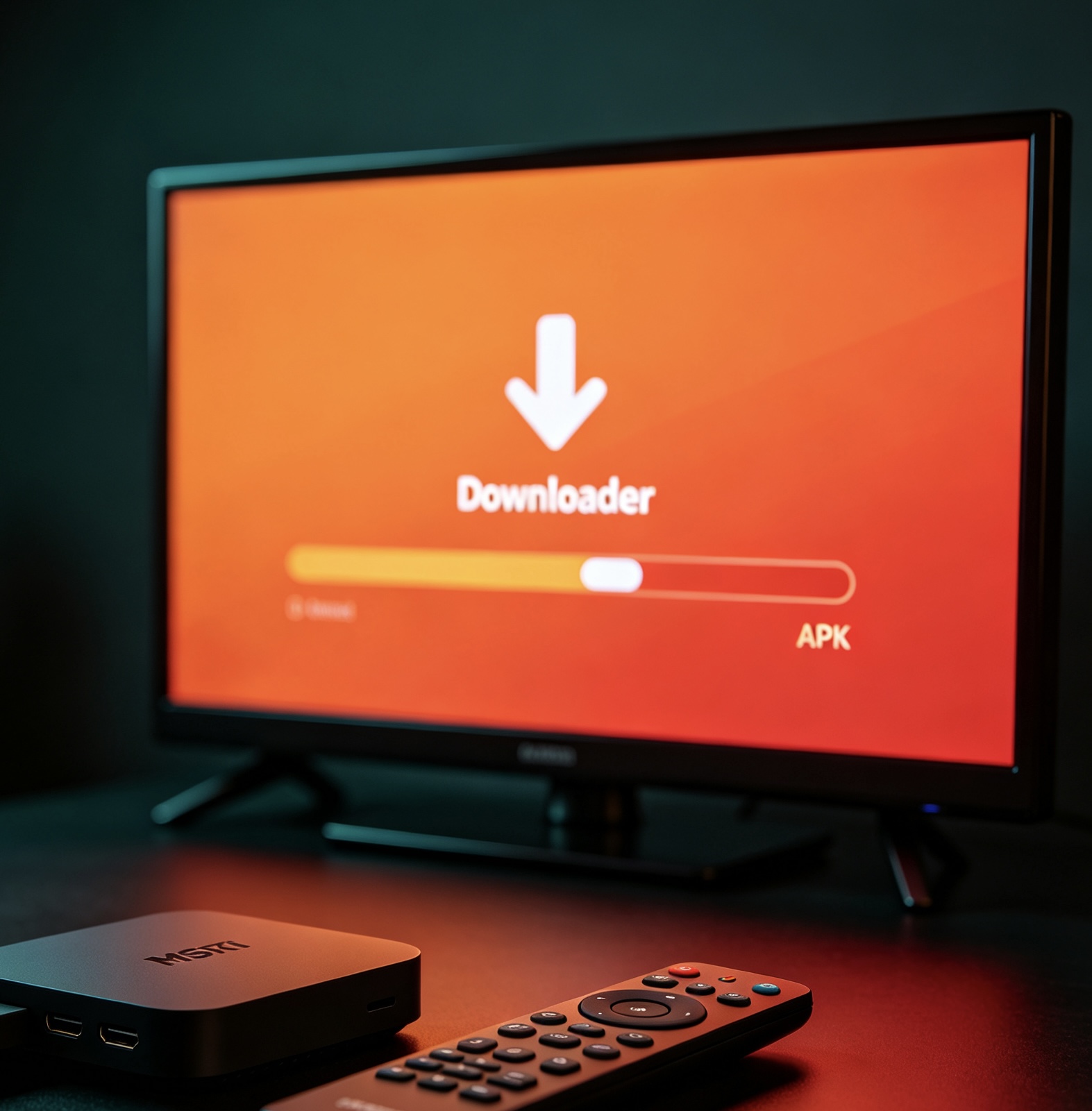
- Install Downloader — Open the application store on your compatible Fire TV or supported TV device, search for Downloader, and install the application.
- Open Downloader — Launch Downloader after installation. If the system asks for permission to install applications from unknown sources, open the relevant settings and allow Downloader to install APK files. The exact menu location can vary according to the device and operating-system version.
- Enter the current download code — Use the Downloader interface to enter the current MovieBox download code shown on the official MovieBox TV download page. The current page lists 9716118, but users should verify this before proceeding because download codes are subject to change.
- Download the APK — Downloader will open the relevant download destination. Follow the on-screen instructions and wait until the APK has completely downloaded. Do not interrupt the download before it reaches completion.
- Install MovieBox TV — Once the APK has finished downloading, select the installation option. If Android or Fire OS displays a security prompt, review the permission and continue only if you trust the source.
- Open the application — After installation, select Done or Open, depending on the screen displayed. You can then find MovieBox in your device’s application list.
The MovieBox TV installation page specifically describes Downloader as an option for compatible Fire OS, Android TV, and Google TV devices.
Method 2: Transfer APK from Phone to TV
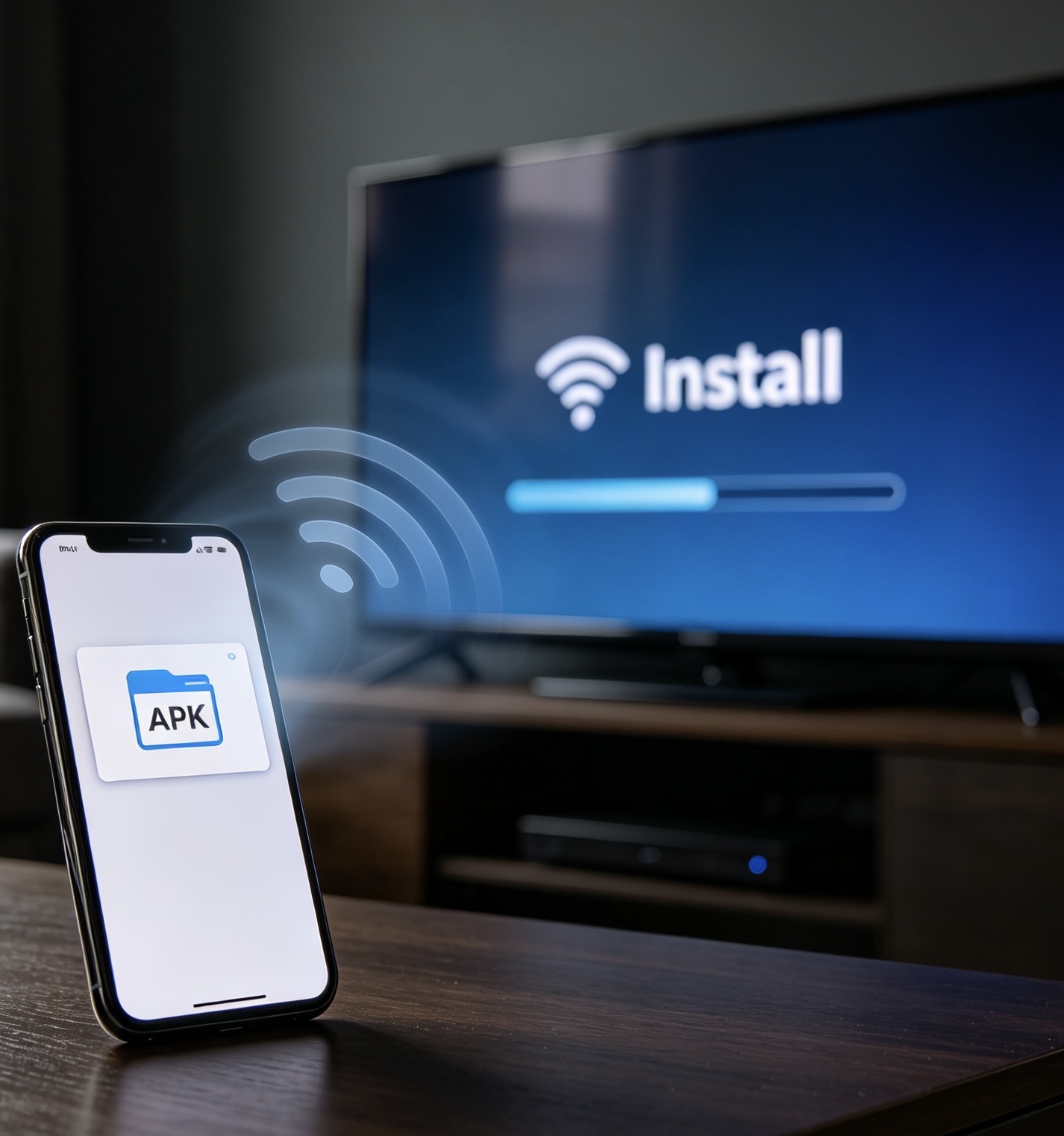
If you already have the MovieBox TV APK on your smartphone, transferring it over Wi-Fi can be easier than typing URLs or codes with a TV remote. This method works particularly well when both your phone and Android TV are connected to the same Wi-Fi network.
If one transfer tool is unstable, try LocalSend, X-plore File Manager, File Commander, FX File Explorer, TV File Transfer, or Downloader by AFTVnews.
Before transferring, make sure the APK has been fully downloaded to avoid installation failure caused by a damaged file.
- Download the APK on your phone — Download the appropriate MovieBox TV APK to your phone. If you are accessing the download page from a computer, the current MovieBox TV page also provides a QR-code option for downloading the APK to a phone. Make sure the download has completed before attempting to transfer the file.
- Install a file transfer tool — Install a compatible transfer application on both your phone and TV. The MovieBox guide mentions tools such as Send Files to TV, LocalSend, X-plore File Manager, File Commander, FX File Explorer, TV File Transfer, and Downloader.
- Connect both devices to the same Wi-Fi — Your phone and television should be connected to the same local network. This allows the transfer application to detect the receiving TV.
- Open the transfer tool on the TV — Launch the transfer application on your Android TV and keep it open while you prepare the phone.
- Select Send on your phone — Open the same transfer application on your smartphone and select the option to send a file. Locate the MovieBox APK, which is normally found in your phone’s Downloads folder.
- Select your TV — Choose the television from the list of available devices. Start the transfer and wait until it reaches 100 percent.
- Open the APK on your TV — After the file has been transferred, locate it using the transfer application or a file manager. Select the APK and choose Install.
- Allow unknown app installation — If the TV blocks the installation, open the relevant permission settings and allow the transfer tool to install unknown applications. Return to the APK and select Install again.
This method is particularly useful when typing on the TV remote is inconvenient. The current MovieBox guide recommends the same Wi-Fi transfer approach and notes that the APK may need to be located manually through a TV file manager after transfer.
Method 3: Download APK Directly with TV Browser
Another straightforward method is downloading the APK directly from a browser installed on your Android TV. This eliminates the need for a phone or computer.
The current MovieBox guide mentions options such as Downloader, TV Browser, and Puffin TV Browser, although availability can vary by device.
Install a TV browser, search for MovieBox APK, download the APK file, allow unknown app installation if prompted, and finish the installation on your Android TV.
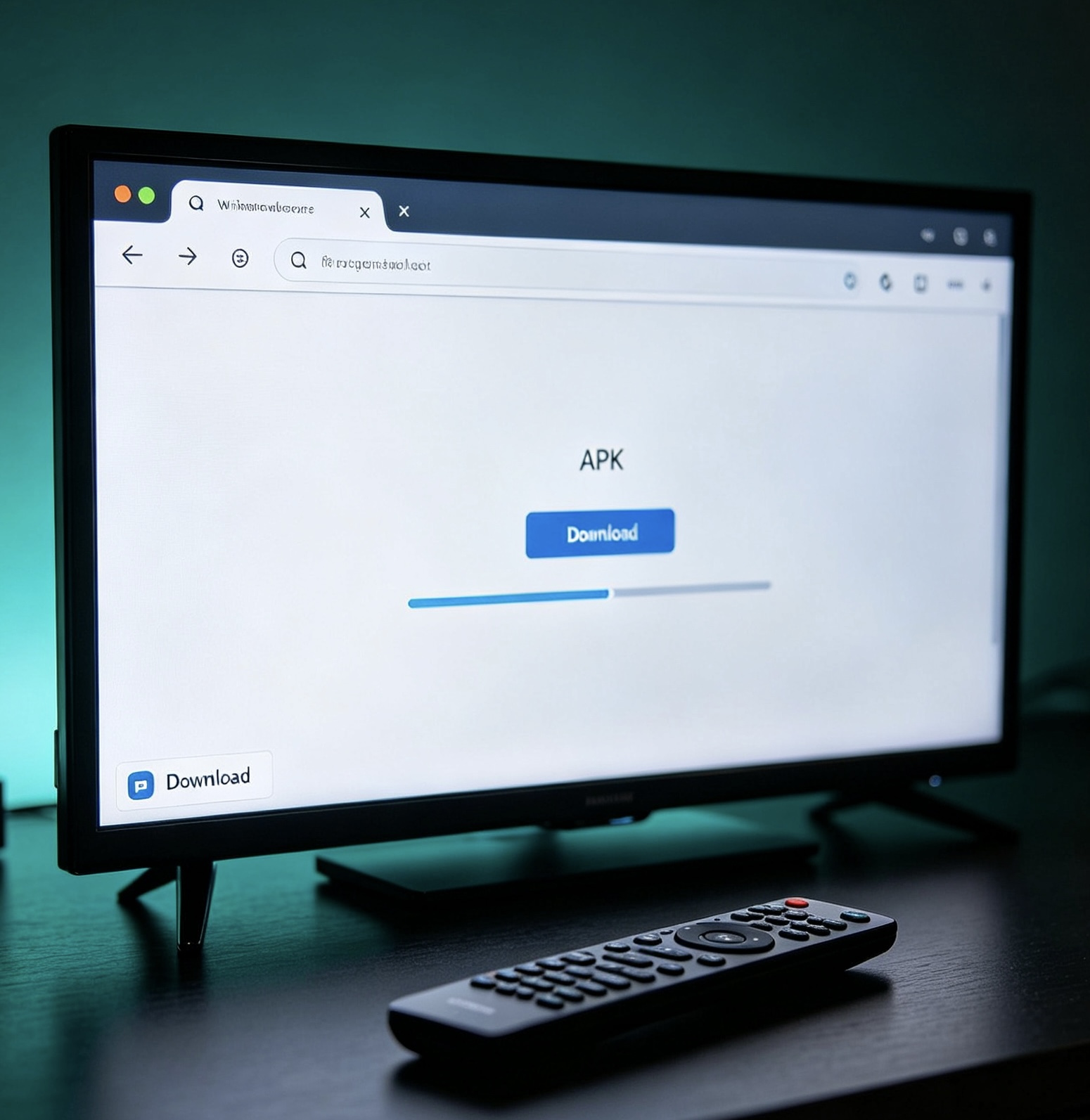
- Install a TV-compatible browser — Open your TV’s application store and install a browser capable of downloading files.
- Open the browser — Launch the browser and complete any basic permission requests.
- Search for MovieBox APK — Use the browser’s search field or address bar. If typing with the remote is inconvenient, use voice input if your TV supports it.
- Open a reliable download page — Find the MovieBox TV APK download page and locate the actual APK download button. Be careful with misleading advertisements and fake download buttons. A trustworthy download page should clearly identify the APK and provide relevant information rather than repeatedly redirecting you to unrelated pages.
- Download the APK — Start the download and wait until the file is completely saved. Depending on the browser, the APK may appear in a Downloads folder or a browser-specific download list.
- Allow installation — If Android TV blocks the installation, open the system settings and allow the browser to install unknown applications. A commonly used path is:
Settings → Apps → Special App Access → Install Unknown Apps
The exact wording may differ depending on the Android TV version.
- Open and install the APK — Return to the downloaded file and select it. Choose Install and wait until the process is complete. The current MovieBox guide also recommends using a file manager if the browser does not automatically open the downloaded APK.
Method 4: Use TV Box or Streaming Stick
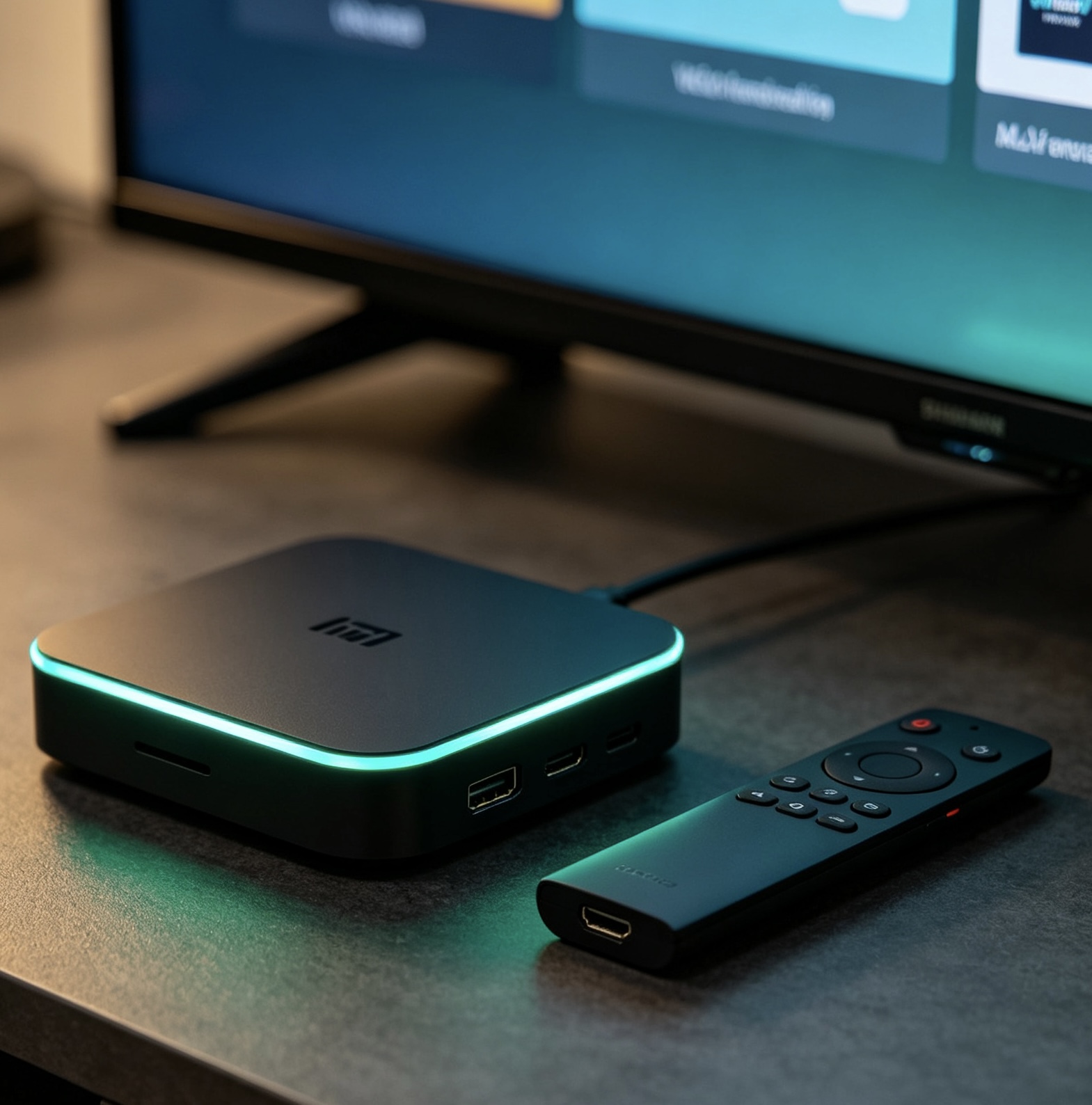
What if your television does not support Android TV? An external TV Box or streaming stick can provide another solution. This is especially useful for televisions running systems such as Samsung Tizen, LG webOS, Roku, or other platforms that do not normally accept Android APK files directly.
Instead of installing MovieBox on the television itself, you install it on the external device connected through HDMI. The current MovieBox guide lists examples such as Amazon Fire TV Stick, Chromecast with Google TV, Xiaomi TV Stick/Box, NVIDIA Shield TV, and ONN Android TV Box.
- Connect the TV Box or stick — Plug the device into an available HDMI port on your television and connect its power cable.
- Select the correct HDMI input — Use your TV remote to switch to the HDMI input connected to the TV Box or stick.
- Complete device setup — Follow the setup instructions displayed on the screen. Connect the device to Wi-Fi and sign in where required.
- Install a download or transfer tool — Depending on the device, install Downloader, a compatible browser, or a file-transfer application.
- Enable APK installation — Open the security or developer settings and allow the selected tool to install applications from unknown sources.
- Get the MovieBox APK — You can either download the APK directly on the TV Box or stick, or download it on your phone and transfer it to the external device.
- Install the APK — Open the downloaded file using a file manager and select Install. After installation, MovieBox should appear in the device’s application list.
This approach effectively adds a compatible Android-based environment to a television that does not natively support Android APK installation.
How to Choose the Best Installation Method
Choosing the right method depends on your equipment.
| Your Setup | Recommended Method |
|---|---|
| Fire TV Stick | Downloader |
| Fire TV Cube | Downloader |
| Android TV | TV Browser or Downloader |
| Google TV | TV Browser or Downloader |
| Android TV with a phone available | Phone-to-TV transfer |
| Difficult TV remote typing | Phone-to-TV transfer |
| Samsung Tizen TV | Compatible TV Box or streaming stick |
| LG webOS TV | Compatible TV Box or streaming stick |
| Roku TV | Compatible external device |
| Apple TV | Compatible external device |
If you already have Downloader installed, the direct-download method is usually convenient.
If you do not want to type anything on the television, transferring the APK from your phone can be easier.
If your TV has a good browser, direct browser downloading avoids the need for another device.
If your television is not Android-based, an external TV Box or streaming stick is generally the more practical route.
Key Features of MovieBox for Android TV
MovieBox TV brings the MovieBox experience to your television screen. These are the features that make it a practical choice for big-screen viewing:
Big-Screen Streaming for Free
Thousands of movies, TV series, and live sports events stream directly on your television, with no cable subscription required.
Built for Remote Control
The TV-oriented interface uses larger posters, readable descriptions and subtitles, and navigation that works comfortably with a TV remote instead of a phone.
Broad Platform Support
The TV APK is designed for compatible Android TV, Google TV, and Fire TV devices, and can still be used on other televisions through an external TV Box or streaming stick.
Flexible Installation Options
Choose the method that fits your setup: a Downloader code on Fire TV, a browser on Android TV, a phone-to-TV transfer over Wi-Fi, or an external streaming device.
Offline Viewing
Where supported, content can be downloaded to the device so you can watch without relying on a live connection or using mobile data.
Comfortable Family Viewing
A large screen, sofa-friendly layout, and support for external speakers make it easy to watch together without holding a phone during playback.
What to Do After Installing MovieBox TV
Once installation is complete, there are a few things worth checking.
- Open the application and make sure it responds correctly to your remote control.
- Check the network connection and confirm that video playback works normally.
- Check available storage regularly, especially if the application supports downloading content for offline viewing.
- Keep your TV operating system and installed applications reasonably up to date.
If the interface appears incorrectly, the APK may not be optimized for your particular device.
Common MovieBox TV APK Installation Problems
| Problem | How to Fix |
|---|---|
| App Not Installed | This can happen if you downloaded an incompatible APK, have insufficient storage, or already have a conflicting version installed. Check the APK version and device compatibility first. |
| APK Download Stops | A weak Wi-Fi connection can interrupt the download. Try restarting the download after confirming that the TV has a stable internet connection and enough storage. |
| Install Button Does Not Work | Your device may be blocking APK installation. Check whether the browser, Downloader, or file-transfer application has permission to install unknown apps. |
| APK Cannot Be Found | Use the browser’s Downloads section or open a file manager and check the Downloads folder. For transferred files, check the receiving folder used by your transfer application. |
| MovieBox Does Not Appear on the Home Screen | Some TV systems do not automatically place newly installed sideloaded applications on the home screen. Open the full application list and look for MovieBox there. |
| Mobile APK Instead of TV APK | Installing a mobile version on a television may result in poor navigation or compatibility problems. Whenever possible, choose the TV-specific APK for your TV device. The current MovieBox installation page explicitly recommends selecting the TV version or an Android TV-compatible version. |
Frequently Asked Questions
Can I install MovieBox TV APK on Android TV?
Yes, the current MovieBox installation guide provides a dedicated TV APK for compatible Android TV and Google TV devices.
Can I install MovieBox directly on a Samsung Smart TV?
Samsung’s Tizen operating system does not normally support standard Android APK installation. The practical alternative described by the MovieBox installation guide is to use a compatible external TV Box or streaming stick.
Can I install MovieBox on an LG Smart TV?
LG webOS is different from Android TV and does not normally install Android APK files directly. An external compatible streaming device can provide an alternative environment.
Which installation method is easiest?
For supported Fire TV devices, Downloader can be one of the simplest options. For Android TV users who already have the APK on their phone, transferring the file over Wi-Fi can also be convenient.
Do my phone and TV need the same Wi-Fi network?
For phone-to-TV file transfer, both devices generally need to be connected to the same Wi-Fi network so that the transfer application can detect the TV.
Do I need a TV Box?
Not necessarily. If your television already runs Android TV or Google TV, you may be able to install the TV APK directly.
A TV Box or streaming stick becomes more useful when your television runs an incompatible operating system.
What Android version is required?
The current MovieBox installation page states that the Android version generally requires Android 6.0 or later. However, compatibility can vary by application release and device, so users should check the current requirements before installation.
Is Downloader available on every smart TV?
No. Downloader availability depends on the operating system and application store of your device.
If your television does not support Downloader, consider using a TV browser, transferring the APK from a phone, or using a compatible external streaming device.
Is it safe to install an APK?
APK installation itself is a normal Android software installation process, but the safety of an APK depends heavily on its source and contents.
Use a trusted download source, avoid modified files from unknown websites, review requested permissions, and keep your device’s security features enabled where possible.
Final Thoughts
Installing MovieBox TV APK does not have to be complicated. The key is choosing the installation method that matches your television or streaming hardware.
For Fire TV and compatible Android/Google TV devices, downloading directly through Downloader can provide a convenient installation route. If the APK is already on your smartphone, transferring the file from phone to TV avoids typing long addresses with a remote.
Before starting, check your operating system, internet connection, available storage, and APK compatibility. If your device asks for permission to install unknown applications, make sure you understand which application is requesting that permission and only proceed when you trust the source.
Most importantly, use the appropriate TV APK rather than assuming that a mobile APK will work correctly on a large screen.
With the right device and installation method, setting up a TV-compatible APK can be a relatively simple process and can provide a more comfortable way to use entertainment applications on a large display.